Wondering what software you should try? Well, you’ve come to the right place. These are names of 11 free ones we recommend. These selections are solely based on our opinions. If you have a program that you recommend, leave a comment in the comments section. Here they are in alphabetical order. The following are mainly for Microsoft Windows. Check their website for system requirements. Some programs might not be compatible with 64-bit operating systems. See the publisher’s site for details. We are not recommending any antimalware program or browser add-on here. All features we mention here are available in the product’s free version.
7-Zip:
File Manager and Compression: Having trouble opening .rar? Don’t want to spend so much on programs like WinZip and WinRAR? Try 7-Zip! This free and open source utility is simple, yet extremely powerful. Unpack a variety of different file types including 7Z, ISO, RAR, ZIP, and much more. Create archives, even SFX (self extracting) and password protected ones. It can also be used as a powerful file manager. Windows only with a command line port for Mac OS X and Linux. Read our post on 7-Zip for more details. Alternatives include IZArc. Paid alternatives include WinZip and WinRAR.

CCleaner:
Computer Optimization: Too much junk on your computer? Not sure whats safe to delete? The freeware CCleaner does it all for you. Check a few boxes, then click Analyze and Clean. That’s it. You might be surprised how much you can clean. Be careful with the areas marked Advanced. Leave them alone if you don’t know what you’re doing. CCleaner also includes an uninstaller, startup manager, system restore, registry cleaner, and more. Read out post on CCleaner for more details. Note: Like many programs, by default during installation, a box for Install Yahoo! Toolbar to run CCleaner from browser is checked. If you do not wish to have Yahoo! Toolbar, like me, simply uncheck the box.

Digsby:
Multi-Protocol Chat Client: Forget those single protocol clients and go with something that can connect to them all and more! Digsby stands out of them all, not only because its completely free, but it has email notification and social networking newsfeed built in! Compose email right from the interface in the chat windows, elegant tabbed interface with drag and drop to new windows or rearrange, set social networking status, and much much more! Other features include quick reply notification, full log viewer, merged contacts, and more. Its free and ad free!
Note: In order to get funding for the development of this ad free program, Digbsy’s main installer uses a third-party installer known as InstallIQ. This offers a lot of useless junkware. Simply press Decline if you do not wish to have the extra software. You do NOT have to press Accept on anything but the one that is for Digsby itself. Alternatively, you may use another installer (not third party) which is found by clicking on the "here” button in the fine text after clicking the operating system where it says if you have trouble. Or you can click here to download the alternate installer right now. Read about this alternate installer and the program at my review of Digsby here. Read about their revenue methods here. Currently Windows only. Alternatives include Pidgin and Trillian. Paid alternatives include Trillian Pro.

Gadwin PrintScreen:
Screenshot Utility: Sure, you can press Print Screen then paste it into programs like Paint, but thats way too slow and inefficient. Windows Vista and Windows 7 include a Screen Snippet tool but its still not very efficient. Gadwin PrintScreen is here. The free version doesn’t have an editor but you can set it to automatically open your favorite image editor such as GIMP or Paint.NET. Attractive interface and powerful features. Paid Pro version which does have an editor available too. Paid alternatives include Techsmith SnagIt.

GIMP:
Image Manipulation Tool: Want Photoshop? Don’t want to spend so much? Try the free and open source GIMP (GNU Image Manipulation Program)! This program lets you touch up images and add special cool effects to it. It might be confusing at first, but its very easy to use. Easily create animated .gif images. There are way too many features to explain them all. Try it for yourself and find out! Great free alternative to Photoshop. Alternatives include Paint.NET. Paid alternatives include Adobe Photoshop.

Google Earth:
Virtual Earth Viewer: Love traveling and exploring new places? Google has created an amazing and popular program known as Google Earth. This free program lets you view aerial images of the Earth with some 3D building models as well as street view! Thats not all. You can also go on a Flight Stimulator, Sky Mode, and more! Version 5.0 adds going underwater and Google Mars as well as Historic View! This program requires a lot of RAM especially video RAM. If you don’t meet high Video RAM, it will still work, however the oceans will not be animated. Even if you don’t meet the top notch requirements (like me, I don’t meet video RAM), just meet the minimum requirements, and the program should be very enjoyable. Like many Google products, they have a tradition of easter eggs and April Fools pranks (such as CADIE, which was actually quite fun). Can you find them? Pro version designed by commercial use available too.

Mozilla Firefox:
Web Browser: Award winning browser that gives you security, speed, and full customization. Thousands of add-ons to customize your experience. Want a feature or looks? Maybe there’s an add-on or theme for that, such as the new Personas add-on! Dozens of security features such as Instant Web ID. Hundreds of more features, such as the Awesome bar. Type any part of anything and it will search for history, bookmarks, and if you hit enter from there and its not a complete URL, it will search on the default engine like other browsers, however, your term is a keyword, so if you type in for example, weather it will automatically go to weather.com skipping the search results. While it might not be as fast as some other browsers, we would prefer a bunch of unobtrusive features over a slight speed boost any day. Alternatives include Opera and Google Chrome.

Revo Uninstaller:
Clean Uninstaller: You might be asking. What’s the point of this? An uninstaller? Erm.. doesn’t Windows have this already? Wrong. Programs, especially security programs, are a pain to uninstall. They want you to think that they have fully uninstalled but is that true? Revo Uninstaller now only runs the program’s built in uninstaller, it also runs a scan of your registry and computer for any remaining files. Then you can choose which registry entries or files to delete. A system restore point is always made beforehand. Very efficient and powerful. This program also comes with a startup manager, traces cleaner, tools manager, unrecoverable secure delete tool, and more.

Sandboxie:
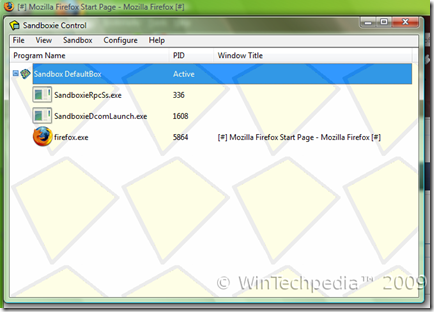
Isolated Sandbox Environment: Run programs. Test programs. Without ever making any permanent changes to your computer. Integrating with Windows Explorer’s right click menu you can run any program in Sandboxie where it will write to data to a sandbox environment. Easily delete this data at any time. Very useful program. Unlike virtualization tools, this only runs one program in a sandbox rather than a whole new operating system. After 30 days using the free version, you will see a nag screen for the paid version however you can continue using the program normally. Programs running in Sandbox are marked by [#] in the titlebar. You can even run .exe installers in Sandbox to install onto Sandbox to try some programs. Plus version available.
Sun xVM VirtualBox:
Virtualization Tool: Need to virtualize an operating system? Want to test a new operating system without partitioning and dual booting? Well, there are many virtualization choices out there, but this one stands out, not only because its completely free and open source, but the performance is great. While it might not run as great as the pricey VMware, its free! Multi-platform both as the host and the guest system. Run multiple operating system on top of your main (host) one. Very easy to configure. Test programs on other operating systems in a mostly isolated environment. Note: Like all virtualization tools, even VMware, this will not support the Windows Aero interface available in Windows Vista and Windows 7 because the virtualized video card does not support the WDDM Driver and DirectX 9.0 (some tools like VMware support DX9 but not WDDM). Alternatives include the free VMware Server. Paid alternatives include VMware Workstation.
Credit for the following screenshot goes to Sun Microsystems.

VLC Media Player:
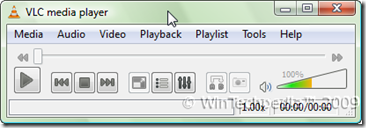
Media Player: Ever have trouble playing media files of certain file types like .ogg. Need a simple media player? The free open source VLC Media Player is here to help. Play nearly every single media file type. The program is very simple. Opening file types can be a bit harder than typical media players. It can be skinned however I will warn that the behavior is completely unpredictable when you do so. But this is a wonderful media player that is worth a try!
So there you have it. 11 programs for Microsoft Windows and possibly other systems too that we urge you to try. Got a program that you want us to try and perhaps blog about? Leave a comment in the comments section or contact us through the contact form. I have personally tested all of the above software and they all work perfectly. Performance varies depending on your system specifications.