Showing posts with label speed. Show all posts

Wednesday, May 13, 2009

Accelerators for Firefox.

Internet Explorer 8 introduces a nice new feature known as Accelerators where you can highlight any word and a blue button appears. Clicking that button lets you search that highlighted term using a variety of engines right there. Firefox doesn't have this feature built in, but like most other features, it can be replicated. There are many ways to do this.

For the second time, I am posting about ways to get accelerators for Firefox. The first one was about Kallout, which adds a nice button like IE and lets you search from a pre-selected number of engines. Now, want full Accelerator support?


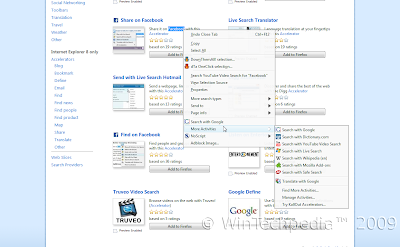
Basically it makes an extra option in the right click context so you can search using your installed engines, then head on over to the IE Addons site. Notice that the Add to Internet Explorer buttons on the accelerators now say Add to Firefox. This was made possible by a script.


However, there is one drawback to this. Unlike Kallout, this doens't use the button. Instead, it uses a right click menu. A bit more inconvenient, but works with most IE Accelerators. In addition, the button that appears on IE and on Kallout is slightly obstrusive and can lag, especially Kallout on some Blogger blogs, including ours.

Recommendation from the developers of IE Activities: Upon installing, you will get a notice saying that they recommend installing Kallout. They work nicely together but I found using both unnecessary. I currently use IE Activities because I find the overlay button that automatically appears slightly obtrusive.


That's all folks for today! Please comment on tech as we need comments to improve on the tech guide. Don't hesitate to ask any questions. Thanks!
By - WinTechpedia™ 2009 Contributors

Monday, April 13, 2009

Techpedia Daily 5: Speed Up Firefox

Welcome to Techpedia Daily 5, the fifth in the daily series of tips and tricks for you to get the most out of your computer.

Mozilla Firefox is an award winning, fast full-featured browser featuring built in antiphishing (as of Version 2), antimalware (as of Version 3), pop up blocker, tabs, customizations (over 5000 add-ons and theme available) and much more. It is now the second most popular browser in the world, the first being Internet Explorer (which is bundled with Windows, the most popular operating system).

For simple ways to speed up, visit Daily issue 4. However, this will speed it up a lot more, although it will take significantly longer as this post will also be much longer than usual.

Here's a bunch of things you can do to speed up Mozilla Firefox without any additional downloads or installs. Unlike other browsers, Firefox actually lets you modify its configuration through the about:config page.

Remember, this tutorial is for Mozilla Firefox only. Tested on Firefox 3. Therefore, to start, obviously, open up Firefox (Microsoft Windows, Mac OS X, or Linux).

Just in case you mess up, make a backup from your configuration. Go to your Firefox profile which is located:

Windows Vista and 7: C:\Users\AppData\Roaming\Mozilla\Firefox
Windows 2000, XP, Server 2003: C:\Documents and Settings\
Mac OS X: ~/Library/Application Support/Firefox
Linux and Unix Systems: ~/.mozilla/firefox

Click on the Profiles folder and the next folder which should be like a random string of characters followed by .default (if its your default profile). Look for a file called prefs.js. Copy and paste that to another folder (COPY not CUT) or somewhere safe. Don't lose it. If you mess up simply paste that back into your profile and replace the existing one.

First type in about:config into the address bar. A warning will appear, so click, "I'll be careful, I promise!" This is like Firefox's own version of the Microsoft Windows Registry. So, just like the registry, it could get messed up, so be careful. That's why we created a backup.
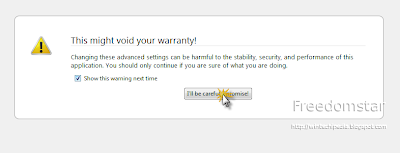
Helpful info about this page: There are 3 types of values: Boolean, Integer, or String. Double clicking any value either modifies it (Integer/String) or toggles it (Boolean). To remove a value, reset it. Only values that are NOT built into Firefox by default AND are not being used by an installed extension will be deleted. Bolded lines are user set while others are default value. Anyways, time to speed up Firefox!

For all the filter bar terms that I mention here, only change the value for that EXACT name.

HTTP Pipelining
Most web pages are transferred using the HTTP Application Protocol. HTTP Pipelining is when multiple requests are sent before any responses are received. This speeds up page loading times, although note that some servers might not support it.

In the filter bar, type in
network.http.pipelining When the results come (click Enter or wait a few seconds for instant search) Make sure it says true and if it doesn't, double click to toggle it.
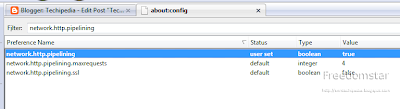
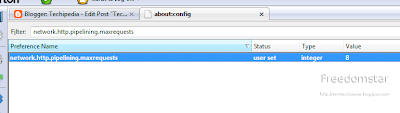
Then type in network.http.pipelining.maxrequests Double click it and set it to 8 (Default is 4).
HTTP Proxy
Type in network.http.proxy.pipelining Double click to set it to true (if it isn't already true).
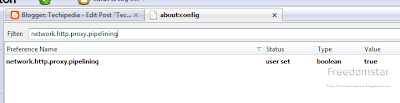
HTTP Pipelining should speed the time it takes to load pages.

From here on, lets keep it short:

Create a new integer value: content.notify.backoffcount and set the value to 5 Create a new boolean value: plugin.expose_full_path and set it to true Create a new integer value: ui.submenuDelay and set the value to 0

Now, full paths are displayed in about:plugins and the Sub Menus no longer have delays.

From here on, it depends on your computer. In the following, it seems pointless to explain what type of value. There are no strings here so don't worry. If its true/false, then its a boolean. If its a number, then its an integer. If the value does not exist yet, create it. If it does, edit it.

If you have a fast computer with a fast connection (DSL/Cable/T1)

  1. content.interrupt.parsing: true
  2. content.max.tokenizing.time: 2250000
  3. content.notify.interval: 750000
  4. content.notify.ontimer: true
  5. content.switch.threshold: 750000
  6. nglayout.initialpaint.delay: 0
  7. network.http.max-connections: 48
  8. network.http.max-connections-per-server: 16
  9. network.http.max-persistent-connections-per-proxy: 16
  10. network.http.max-persistent-connections-per-server: 8
  11. browser.cache.memory.capacity: 65536
If you have a fast computer, but slower connections (slower DSL/Cable):
  1. content.max.tokenizing.time: 2250000
  2. content.notify.interval: 750000
  3. content.notify.ontimer: true
  4. content.switch.threshold: 750000
  5. network.http.max-connections: 48
  6. network.http.max-connections-per-server: 16
  7. network.http.max-persistent-connections-per-proxy: 16
  8. network.http.max-persistent-connections-per-server: 8
  9. nglayout.initialpaint.delay: 0
  10. browser.cache.memory.capacity: 65536
If you have a fast computer, but slow connection (Dial Up)
  1. browser.xul.error_pages.enabled: true
  2. content.interrupt.parsing: true
  3. content.max.tokenizing.time: 3000000
  4. content.maxtextrun: 8191
  5. content.notify.interval: 750000
  6. content.notify.ontimer: true
  7. content.switch.threshold: 750000
  8. network.http.max-connections: 32
  9. network.http.max-connections-per-server: 8
  10. network.http.max-persistent-connections-per-proxy: 8
  11. network.http.max-persistent-connections-per-server: 4
  12. nglayout.initialpaint.delay: 0
  13. browser.cache.memory.capacity: 65536
If you have a slow computer, but a fast connection (T1/DSL/Cable)
  1. content.max.tokenizing.time: 3000000
  2. content.notify.backoffcount: 5
  3. content.notify.interval: 1000000
  4. content.notify.ontimer: true
  5. content.switch.threshold: 1000000
  6. content.maxtextrun: 4095
  7. nglayout.initialpaint.delay: 1000
  8. network.http.max-connections: 48
  9. network.http.max-connections-per-server: 16
  10. network.http.max-persistent-connections-per-proxy: 16
  11. network.http.max-persistent-connections-per-server: 8
  12. dom.disable_window_status_change: true
And finally, if you have a slow computer and a slow connection (Dial Up)
  1. content.max.tokenizing.time: 2250000
  2. content.notify.interval: 75000
  3. content.notify.ontimer: true
  4. content.switch.threshold: 750000
  5. nglayout.initialpaint.delay: 750
  6. network.http.max-connections: 32
  7. network.http.max-connections-per-server: 8
  8. network.http.max-persistent-connections-per-proxy: 8
  9. network.http.max-persistent-connections-per-server: 4
  10. dom.disable_window_status_change: true
This should optimize your Firefox to be faster.

Ever realized how when you minimize Firefox and keep it idle, it still uses up so much RAM? Now, lets make it so its like most other apps; minimizing would swap the memory usage from RAM to disk.

SIDE EFFECT: If you are someone who likes to constantly minimize Firefox, like me, don't use the following setting. It may cause lagging. This value slows down Firefox "waking up"

Add the following boolean value: config.trim_on_minimize and set it to true

The default value is false and that is recommended for typical users. The memory only gets swapped to disk if needed by other applications. Only set this to true if you have problems with Firefox consuming too much RAM. The best performance of Firefox (but not neccessarily your computer) is acheived with this set to false.

Again, if you ever mess up, simply copy the prefs.js file back in and when it asks you if you want to replace the existing one, select Yes, assuming you made a backup first. If you didn't, then run Firefox in safe mode and on the Window that comes up first

Thanks for reading Techipedia! As always, you may contact me by chatting with me in the Digsby widget in the sidebar, leaving a comments in the comments section, or by sending an email to techpedia.mail@gmail.com.

If you would like to write for Techipedia, send an email to techpedia.mail@gmail.com.

Sunday, April 12, 2009

Techpedia Daily 4: Speed Up Browsers (Simple)

Welcome to Techpedia Daily Issue 4.

We use browsers everyday. The internet is part of our everyday life, but choice of browsers has a major impact on how you experience it. (Get Firefox! :D) But thats not what this post is about. How do we speed up browsers without any extra downloads?

This is the browser speed up simple way that doesn't put for browser at risk of crashing. This post does not involve any configuration hacks. Look for a future issue (probably Issue 5) where advanced settings will be introduced and these CAN mess up your browser if you're not careful (Firefox only).

1. Cut Down History Size

Each time a browser loads, it needs to load up the history. By default, browsers Mozilla Firefox stores history for 90 days, which is excessive. For most browsers, there should be somewhere to configure how many days to keep the history stored. Here is how to set this on the most well-known browsers.

Microsoft Internet Explorer (Windows only)
Go to your Internet Options from the Tools menu (both from Tab bar in Version 7.0+ and menu bar). Then under browsing history in the General Tab, click Settings and on the new window is the option to change how long history should be stored.
Mozilla Firefox (all platforms)
Go to your Options from the Tools menu (Windows and Mac) or Preferences from the Edit menu (Linux). Then on the Privacy tab, lower the history amount.Apple Safari (Mac and Windows)
Go to your Preferences from the Edit Menu (Safari 3) or Preferences from the Tools menu ("Gears" button) (Safari 4). In the General tab, there is an option to choose how long history items should be stored.
Google Chrome (Windows)
Google Chrome does not have an option to do this.

Opera (all platforms)
On the Tools menu, click on Preferences. Then under the Advanced Tab, there should be "History" in the sidebar. Unfortunately, there isn't much flexibility here. By default, it remembers 1000 web sites. The only options available are 0, 1000, 5000, 10000, 20000, and 50000.
2. Clear Data

Browsers stores history, cache, downloads, and other data. This is helpful but having them especially old ones are pointless. So why not clear them every so often. Don't worry you don't need to clear them all at once. Many browsers also feature Private Browsing, where this data won't be stored at all (as of April 2009: Internet Explorer 8, Safari, Google Chrome, and Firefox 3.5-formerly 3.1).

Microsoft Internet Explorer
Out of all the browsers mentioned here, IE is the slowest at doing this. But anyway, go to the Tools menu and click Delete Browsing History. In IE8, you can go to the Safety menu on the tab bar. Or press Ctrl+Shift+Del to do this. Check what you want to delete and click "Delete." Then a progress window or two progress windows appear. IE is one of the only browsers that do this.
Mozilla Firefox
On the Tools menu, click Clear Private Data. Or press Ctrl+Shift+Del to do this (Windows and Linux) and Cmd-C+Shift+Del (Mac). Check what you want to delete and click "Clear Private Data Now."
Safari
From Edit menu (Safari 3) or the Tools button (Safari 4), click Reset Safari and choose what you want to delete and click "Reset."
Google Chrome
From the Tools button, click Clear Browsing Data. Choose what you want to "obliterate" and click "Clear Browsing Data."
Opera
From the Tools menu, click Delete Private Data. Click Detailed Options to choose what you want to delete and then click "Delete."
3. Extra Navigation Tip

Many browsers support Ctrl+Tab for switching tabs. Very useful feature. A tab switch window is coming back to Firefox soon (available in Firefox 3.1 Beta 1 and removed in Beta 2).

Look for the next issue where configuration "hacks" will be introduced to Firefox to optimize your browsing experience.

As always, you can contact me through chatting in the Digsby widget in the right column, leaving a comment in the comments section, or by sending an email to techpedia.mail@gmail.com. Thanks for reading!
Saturday, April 11, 2009

Techpedia Daily 3: Speed Up Windows Explorer (Vista+)


Welcome to Techpedia Daily 3, the third in the series of daily tips and tricks for your computer.
Yesterday's issue was about speeding up Windows XP. Now how about Windows Vista and Windows 7?

Microsoft Windows is the most bought operating system. Microsoft Windows is the most popular operating system. Conclusion? Microsoft Windows Explorer is the most used file manager. This is the post for Windows Vista and Windows 7 users. For Windows XP users, check out Techipedia Daily 2.

The new redesigned Windows Explorer is fantastic with a nice streamlined design. But as usual, it can get a bit slow. Here are a few tips that you can try to make it run faster. However, some come at the cost of some nice eye candy.

1. Disable Thumbnail Previews
Just like in Windows XP, loading thumbnail previews slow down loading since all of them have to load each time after you clear the cache. To speed things up, you can easily disable them. Unlike Windows XP, you can easily disable this without having to run commands or modify the registry.
On the colored area under the address bar, click on Organize. Then click Folder and Search Options on the next menu. The Folder Options window should then open. Go to the View Tab and under Advanced Options, uncheck "Always show icons, never thumbnails." Now, media files will show as the file icon not the preview, which drags down your computer when it loads. If you have resources to spare and you don't mind waiting for new ones to load or reload all of them when you clear the thumbnail cache, this option is a nice visual effect.

2. Turn off special effects

Windows Vista and Windows 7 feature a resigned interface enabling a load of nice special features. Many are enabled by default and some may slow down your computer depending on your hardware. If your computer is slowed down, here is how to remedy that.

In Windows Explorer, type in Control Panel\System and Maintenance\Performance Information and Tools into the address bar then click enter. Here you will find your Performance Information. In the left panel, click on "Adjust Visual Effects."
Uncheck any that you don't really need. Unchecking all of them will cause everything to look like Windows Classic styles, which is the fastest, but it loses all special effects. Unchecking any of the following will speed up Windows Explorer:
  • Animate windows when minimizing and maximizing
  • Fade or slide menus into view
  • Fade or slide tooltips into view
  • Fade out menu items after clicking
  • Show shadows under menus
  • Slide open combo boxes
  • Slide taskbox buttons
  • Use a background image for each folder type
These tips are basically disabling special effects of Windows Vista and Windows 7, the main cause of lag in Windows Explorer. The largest cause is the thumbnail previews. However, if they're already stored in cache and you don't delete them (in Disk Cleanup or other Computer optimization tools), they won't slow things down much. However, newer media files will severely slow down file browsing, even if you have a fast computer. But if you don't add a lot of files or add files a lot or you don't mind waiting, thumbnail previews are a great feature.

Following these tips will significantly speed up your general file browsing in Windows Explorer however will remove some eye candy. If you want to get back the visual effects, you can easily enable them at any time.

Want to suggest something that you want published? As always, you can contact me through the Digsby widget to the right, leaving a comment in the comments section, or sending an email to techpedia.mail@gmail.com. Feedback is always welcome.

Friday, April 10, 2009

Techpedia Daily 2: Speed up Windows XP Explorer


Welcome to Techpedia Daily 2, the second of the daily tips and tricks for your computer.

Microsoft Windows is the most popular operating system, therefore, most of us probably use it. Tired of waiting every few seconds for the next folder to load and also having your whole system freeze because Windows Explorer consumed all your system resources? Here are a few tips to speed up Windows Explorer in Windows XP (Windows NT 5.1).

1. Disable Automatic Network Drive Searching

Whenever you load Explorer, you may notice a slight lag. This is because Windows XP, by default, searches for files in network drives (network files) and printers every time Explorer opens. This is quite unnecessary as it causes everything to slow down and many of us might not even have any network files. Disabling it is really simple.
Simply go to Folder Options which is accessible from Tools --> Folder Options. Then click on the View Tab. In the Advanced Settings box, uncheck the box that corresponds to "Automatically search for network folders and printers." Then click OK or Apply and reboot your computer. Your Explorer browsing should be faster (especially on low resource computers). Click on the above screenshot to enlarge.

This also works in Microsoft Windows Millennium Edition (Me).
2. Limit the number of details on the details view

Viewing in Details mode is useful because it gives you lots of information about each file and folder in one place. However, Windows needs to look up this data each time and depending on your computer, this might slow it down. You can easily disable what you don't need.
In all Windows NT systems, when in details view, right click on the column names and you will get a list of column options. Uncheck what you don't need. This can speed this up slightly especially for low resource computers.

3. Disable Thumbnail Previews (Advanced)

In Windows XP (as well as later systems), a file thumbnail isn't just the file type icon, but a preview of the image. In XP, Windows Picture and Fax Viewer makes this possible.
However, there is a way to disable the previews, which will disable Windows Picture and Fax Viewer completely although Microsoft doesn't make it easy here. There are two methods: A command, or a registry modification. Try the command first and only try the registry if it doens't work. Both ways should work. End explorer.exe and start it if necessary.

Command Line Version: (Run --> cmd)
Run the following command in Command Prompt: regsvr32 /u shimgvw.dll
This will disable Windows Picture and Fax Viewer, therefore disabling the thumbnails.

To reverse these steps, simply run the command: regsvr32 shimgvw.dll
This will reable Windows Picture and Fax Viewer, therefore enabling the thumbnails.

Registry Modifications: (Run --> regedit)
This is slightly more advanced. Do back up your registry before doing this.

-Expand the keys (folders) to the following:
HKEY_CLASSES_ROOT\SystemFileAssociations\image\ShellEx\ContextMenuHandlers\ShellImagePreview
-On the (Default) key, double click it and clear the value so the value goes blank.

-To reverse this, go back to the same key and double click on (Default) and enter the following for the Value Data: {e84fda7c-1d6a-45f6-b725-cb260c236066} Enter exactly that including the brackets.
These 3 steps will make your Windows Explorer browsing a lot faster. However, if you have plenty of RAM and other resources to spare and want to keep some nice eye candy and visual effects, re-enable the last one.

There are much much more methods to speed up your XP, which will be included in a future issue. These were methods to speed up Windows Explorer in XP. I hope this has been helpful.

Want to suggest something that you want published? As always, you can contact me through the Digsby widget to the right, leaving a comment in the comments section, or sending an email to techpedia.mail@gmail.com. Feedback is always welcome.

Thursday, April 9, 2009

Techpedia Daily 1: Speed Firefox Search


Welcome to Techpedia Daily. The first in our daily collection of quick tips and tricks to make your computer easier and faster.

Mozilla Firefox inline search is great, highlight a search term, right click, and there in the context menu is the button to click to search the current search engine in the search box for that term. But you're quite limited to one engine. To use another, you need to switch engines from the search box. Heres how to make the task faster.

Microsoft Internet Explorer 8
has incorporated a new feature known as "Accelerators," which lets you search for text with a choice of many engines inline without leaving your page. Now how about Firefox?

A new add-on known as Kallout gives this same feature to Firefox will full IE8 Accelerator support coming soon. Simply install Kallout from Mozilla Add-ons, restart, and you're good to go! Highlight any term, phrase, even paragraph, then a button with a blue bubble appears. Simply mouse over that, and you get a wide organized range of services and engines to search from. The first on the menu (not organized into a menu) is the default engine in your search bar. I would like to point out that currently, this might not function properly on Blogger.
As always you can contact me by chatting in the Digsby widget to the right or by sending an email to techpedia.mail@gmail.com. If you have any tips or tricks that you would like published here, send an email, chat message, or leave it in the comments section below. Thanks for reading Techpedia!