Showing posts with label firefox. Show all posts

Tuesday, July 21, 2009

Initial Design Mockups for Firefox 3.7/4.0

Lifehacker has just pointed out that Mozilla has released some initial brainstorms of the design for Firefox 3.7 and Firefox 4.0.

It looks like they are going in the direction of creating a simplistic interface following the path of Google Chrome and Safari. Hiding the menu bar by default and using the two buttons (XP) on the right side. They also seem to be following Safari 4.0 changing colors with the Windows theme. See this. Notice that the toolbar color changes with the Windows theme color. On Vista, its just a tools menu with the page menu on the tab bar left instead.

This design also features (for Windows Vista/7) a full glass interface.

The current design for Firefox 4.0 features the Omnibar and Top Tabs.

Find out more:
Lifehacker
MozillaWiki
Mozilla Links

Wednesday, July 15, 2009

User Agent Switcher (Firefox Extension)

An interesting article came up on CNET Download.com about a Firefox extension I wish I found long ago.

Its User Agent Switcher which lets you pretend to be another browser. Opera has something similar to this built in. Handy for those sites that simply won’t load in Firefox. Unlike IE Tab (and related add-ons) the site still uses Firefox, only pretending to be other browsers like IE by “switching” the user agent.

Be aware however, that many sites want Internet Explorer because their site breaks in other browsers.

Read CNET Download.com’s Post here.

User Agent Switcher (Mozilla Add-ons)

Monday, July 13, 2009

The Last Password You Have to Remember

Do you have trouble remembering passwords? Is writing them on a piece of paper or text file not working? Well then password managers are what you need. Most browsers have one built in, but they are really simple and quite insecure. For example, in Firefox, with just a click on a button, all your saved passwords are revealed. You could add a Master Password, though most people do not. Some browsers like Google Chrome don’t even have a Master Password. Thats when third party managers come in.

Product Name: LastPass Password Manager
Platform: Windows, Mac, and Linux
Browser Integration:
Firefox Add-on, IE Add-on, Bookmarklets for any browser on any platform that supports Javascript (including Chrome, Safari, Opera, and even iPod Touch and iPhone)
Version Reviewed: 1.51.2

Rating:
95 out of 100

Upon installing LastPass, it will prompt you to set up a LastPass Account. Account you say? Yes, thats because this is fully online. LastPass is an online password manager. While that may seem a bit scary, the LastPass servers are host-proof, meaning even their employees cannot access the data. In addition, only the encrypted data is stored on their servers. The key to decrypt it lies in your hands, the master password. All encrpytion and decryption is done on your own computer. The key is not stored on their servers. They use a “salted hash.” Learn more about this here. Learn about their technology: AES-256 bit to secure your data here.

View the details in this flash slideshow. Having problems viewing it or want to view it in full screen? Click here (Picasa Web Albums).

I just started using LastPass and have officially switched to it for my password management. Having it stored online is very handy since I can use it to logon public shared computers.

I can also finally access all my stored data from Firefox and use it on virtually any browser.

Unlike most other Password Managers that integrate with the browser (including Firefox built in), LastPass doesn’t only fill when the page loads. Some sites, like CNET Download.com, fail to be autofilled by managers like Firefox built in because their login screen doesn’t load a new page. Its just a Javascript overlay window. LastPass fills it whenever the login forms appear not just when the page loads.

Also, unlike other managers, LastPass is multi platform and works on just about all browsers (though its superior on IE and Firefox).

It is also capable of searching your computer for stored passwords that are not properly secured and can easily be accessed by hackers. I had no problems having all my Firefox saved passwords imported into LastPass and deleted from Firefox.

Note: You must have third party cookies enabled or have lastpass.com on the Always Allow list or it will always log off automatically each time the browser closes regardless of your auto log off time settings.

Being all online means that you will have to put some trust into the folks at LastPass. While their host proof server has excellent security methods, this might not be the product for those who are really paranoid about their personal data.

Overall, LastPass is a very straightforward and easy to use yet powerful password management tool. The only password I need to remember now is my Master Password.

I have to say, LastPass rocks!

LastPass Home Page
LastPass Download Page
LastPass from Mozilla Add-ons (AMO)
Bookmarklet is available from within your account. Not recommended for Firefox and Internet Explorer as the plugin is much more superior. Learn more here.

Tuesday, June 30, 2009

Firefox 3.5 is now available for Download!

Mozilla Firefox 3.5 is now available for download after more than a year of development!

New features include HTML 5 Open Video Support, CSS Improvements, Private Browsing, Speedier Performance, Forget this Site, and much more.

It also includes their new Tracemonkey Javascript engine. It is claimed to be twice as fast as Firefox 3.0 and ten times as fast as Firefox 2.0.

More details about the release can be found in the release notes.

Be in the Shiretoko Shock!

Note: Most of your favorite add-ons should have updated to work with Firefox 3.5 already. If not, please contact the extension developer.

Spread Firefox Affiliate Button

Technorati Tags: ,,,,,,

Monday, June 29, 2009

Firefox 3.5 is Coming!

According to the Mozilla site, Firefox 3.5 is ready for release. Check back on Tuesday, June 30, 2009 which is tomorrow! :)

Find out more here. (Mozilla)

If you’re using Firefox 3.5 already, the video on the above site will use the new Open Video features. Otherwise, it will use Flash Player.

Feature overview videos:

Mozilla.com
Ogg Download
MP4 Download
YouTube

There are also some other Mozilla Labs features worthy of trying with the new release such as Ubiquity, New Tab Page, Weave, and Jetpack as well as various other projects.

Can’t wait? Download the Release Candidate!

Join the Shiretoko Shock!

Technorati Tags: ,,,,,

Thursday, June 25, 2009

Firefox 3.5 RC 3 Available

The third release candidate of the long anticipated Firefox 3.5 is now available. Its probably a bug fix release as the release notes does not work and/or have not been made. Clicking the Release Notes link under download links you to Mozilla’s 404 Error Page. You can use the Firefox 3.5 Release Notes for now.

To update, you can use the Check for Updates in the Help menu (if you are on an administrator user account or running Firefox under admin) or you can download the latest version from the Firefox Pre-Release Download Site.

Firefox Pre-Release Download Site (Mozilla)

Wednesday, June 17, 2009

Firefox 3.5 RC Update Pushed to Beta/Preview Testers

The long anticipated update to Mozilla Firefox updates again. :) If you have been using Firefox 3.5 recently like me, you can receive

From the Beta Download site, you can download Firefox 3.5 Beta 4. But from there, pressing the Check for Updates button would update your Firefox to a version known as 3.5b99, which is a preview version, between beta and RC.

Just today, another update has been pushed out. This one happens to be the Release Candidate.

From CNET:
"Because of the 800,000 or so testers that Mozilla says have been using the beta versions, Firefox director Mike Beltzner said that he expects this to be the sole release candidate before version 3.5 goes public at the end of June"

That is certainly great news. More than one year after Firefox 3.0, the what was supposed to be a minor update 3.1 released in December is now 3.5 and contains many new features.

There aren't really any noticable changes between the beta/preview and the RC. Just expect it to be more stable.

Here is an excerpt from CNET:
"The upgrades to Firefox 3.5 have been well-documented by now. Private browsing, geolocation, faster performance than Firefox 3 for both loading pages and running JavaScript, local storage for better offline support, and native video for Ogg/Vorbis. If you're running the release candidate or one of its beta predecessors, you can check out Daily Motion to see how the non-Flash based video playback performs.

More improvements include support for HTML5 tags such as < video > and < audio >, native JSON support, support for Web workers so browser-based apps can run in the background, support for CSS and SVG standards, the ability to erase browsing traces by site or by time, personas for easier theme management, and downloadable fonts. The release candidate is also available in more than 70 language localizations."

Theres a nice new shiny Firefox logo too.


Learn more at CNET and Mozilla Developer site.

Note: In Firefox 3.5 RC, it doesn't seem to actually say RC anywhere except the welcome page. The About window just shows 3.5.

Update 6/19: Firefox 3.5 RC 2 is now available for download here. Fixes a few bugs and stability issues found in RC 1.

Saturday, June 13, 2009

WinTechpedia Add-on Collections

You probably noticed Mozilla Add-ons' New Design of the site. The main addition was Collections!

What are collections? "Collections are groups of related add-ons assembled for easy sharing." (from Mozilla)

So we have created 3 collections. Click the following links to go to them and find out more information.

WinTechpedia Recommended

The top add-ons we recommend. Add-ons here include WOT, SkipScreen, NoScript, Adblock Plus, etc...

WinTechpedia Security

The top add-ons we recommend for security and privacy. Add-ons here include WOT, NoScript, etc...

WinTechpedia Fun, Social, and Media
Add-ons we recommend for fun, socializing, communication, and media. Add-ons here include Bork! Bork! Bork!, Yoono, etc...

You could also install the Add-on Collector add-on to subscribe and add favorites to collections.

We need your help to expand these packs. What add-ons do you recommend us add? What add-ons do you recommend us take out? Leave your ideas in the comments!

Subscribing to our collections gives you alerts of new updates to them. This requires the Add-on Collector (by Mozilla).

All add-ons were created by their respective developers.

Friday, May 29, 2009

Mozilla Ubiquity: Connect with the Web Through Language

Ever need to map something right there? Translate something? Do you have too many tabs to switch to one easily? Mozilla Labs, creator of the popular and very successful Personas add-on, has created something called Ubiquity last summer. Its goal is to allow users to access and use common Web services quickly and easily. More information can be found here.

Ubiquity can be installed from the Mozilla Labs blog link above or from Mozilla Add-ons. Ubiquity 0.5, a major update is coming mid-June. Expect a new post on the update when it comes!

Note: This is beta software. Some things may not function properly however it should work overall. Works best in Firefox 3.5+

Additional Note: Certain commands especially page rotate and image rotate rely on new abilities of Firefox 3.5 and therefore will NOT function in Firefox 3.0.

Upon installing, you will be presented with a tutorial at about:ubiquity, which is Ubiquity’s control panel. It shows some of the commands you can use known as “Subscribed Feeds.” You can also create your own at: chrome://ubiquity/content/editor.html.

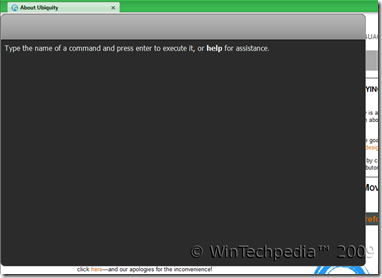
UbiquityTo launch, use the shortcut key specified in about:ubiquity. By default its Ctrl+Space. It has a Mac OS X like interface.

Start typing your command in and it will run as you type.

For example, I want to translate The quick brown fox jumps over the lazy dog from English to Spanish. So, I will type translate The quick brown fox jumps over the lazy dog to spanish from english. It often can detect the language so you can leave the from part out in many cases. As you type it will update so you don’t even have to press enter. Pressing enter takes you to the service pack, which would be Google Translate here, but that's unnecessary. In the following screenshot, there are two available commands as you may choose to actually translate the phrase “to spanish” to something else, but the first result assumes you mean translate the term to spanish.

Ubiquity GT

Pretty neat right? A really big time saver!

Lets try another one. Need to search Wikipedia? No problem. Just enter wikipedia followed by your term and if you need a foreign language, just add to language.

Ubiquity Wiki

Need weather? Then just type in weather followed by your city or zip code and if you want, followed by in F or in C for Fahrenheit and Celsius. Press enter for more detailed info.

Ubiquity Weather

Ubiquity TwitterNeed to send an email? Need to update your Twitter status? Yup, Ubiquity can do all that! Here’s a screenshot for Twitter. Upon pressing enter, you will be asked for your password in a dialog window stating that Authentication is required for Twitter API.

You can also highlight text and search those terms, map it, and so much more and can also be used to run commands like switch tab, close tab, exit, restart, etc… Much much more! And very easy to learn.

Ubiquity by Mozilla Labs is an excellent and useful feature that may soon be implemented into Firefox as a built in feature. What do you think of it?

Click here to download and install Mozilla Ubiquity Now
Click here for more information

Sunday, May 24, 2009

Firefox Omnibar

While you could use an extension, here's an addition to my previous post on Firefox's Location Bar hidden features.

Chrome's URL bar has a lot of hype and excitement. But heres how to do it in Firefox without an add-on.

Mozilla Firefox had this feature all along. Go to your search bar and click the arrow. Then click Manage search engines.

Click on each engine and assign a keyword to it. I suggest a simple letter initial such as g for Google and w for Wikipedia.

Then head on to your URL Bar, and type in the keyword followed by a space, then your search term. If w was the keyword for wikipedia, I would type in w Mozilla Firefox, then Mozilla Firefox would be searched on Wikipedia.

Want to conserve screen space?
No problem! Just right click on the menu bar. Click customize. Drag the search bar into that window and voila! Omnibar! No add-ons needed!


Full details can be found in this video. Click here to watch on YouTube. Watch in HD if possible.


That's all folks for today! Please comment on tech as we need comments to improve on the tech guide. Don't hesitate to ask any questions. Thanks!
By - WinTechpedia™ 2009 Contributors

Saturday, May 16, 2009

The Supreme Accelerators

I made a lot of posts about Accelerators for Firefox. This is the third and by far the very best I've found. Recommended by CNET Download.com Editors.

Cleeki (Select-n-Go)
For Internet Explorer and Firefox
Google Chrome version available (Beta)

Install Links
Internet Explorer plugin
Firefox extension or get from Mozilla Add-ons
Google Chrome extension

Just like IE8, highlight any text and a button appears. Click it and you have some engines to search from. But what makes this different is that this is a little overlay window that performs your search on whatever engine (known as channels) you pick from that window. You can easily add more from the Accelerators section of the IE Add-ons Site. The "Add to Internet Explorer" buttons become "Add to Firefox" buttons because of a script that this add-on uses.


You can perform searches right from the window and even change the term to search for other things too. Completely customizable in terms of colors, channels, size, delay time, and more.

Note: Because Chrome extensions are in preliminary stage, not all features will function properly. Be sure to read the instructions on how to install and use. Available for developer beta Chrome 2.0 version.

That's all folks for today! Please comment on tech as we need comments to improve on the tech guide. Don't hesitate to ask any questions. Thanks!
By - WinTechpedia™ 2009 Contributors

Wednesday, May 13, 2009

Accelerators for Firefox.

Internet Explorer 8 introduces a nice new feature known as Accelerators where you can highlight any word and a blue button appears. Clicking that button lets you search that highlighted term using a variety of engines right there. Firefox doesn't have this feature built in, but like most other features, it can be replicated. There are many ways to do this.

For the second time, I am posting about ways to get accelerators for Firefox. The first one was about Kallout, which adds a nice button like IE and lets you search from a pre-selected number of engines. Now, want full Accelerator support?


Basically it makes an extra option in the right click context so you can search using your installed engines, then head on over to the IE Addons site. Notice that the Add to Internet Explorer buttons on the accelerators now say Add to Firefox. This was made possible by a script.


However, there is one drawback to this. Unlike Kallout, this doens't use the button. Instead, it uses a right click menu. A bit more inconvenient, but works with most IE Accelerators. In addition, the button that appears on IE and on Kallout is slightly obstrusive and can lag, especially Kallout on some Blogger blogs, including ours.

Recommendation from the developers of IE Activities: Upon installing, you will get a notice saying that they recommend installing Kallout. They work nicely together but I found using both unnecessary. I currently use IE Activities because I find the overlay button that automatically appears slightly obtrusive.


That's all folks for today! Please comment on tech as we need comments to improve on the tech guide. Don't hesitate to ask any questions. Thanks!
By - WinTechpedia™ 2009 Contributors

Sunday, May 10, 2009

Optimizing Firefox Tips Tech Guide

Need help to "fire-up" your fox - Mozilla Firefox? Well, great news! I, Creastery™ 2009, will be sharing a guide on that.
We will be using a freeware (No cost needed software) - Firetune
Proudly produced by Totalidea. Privacy policy can be found here.
Copyrights reserved by owner. Note: We are not in any way affiliated to them.

According to your specific computer speed and internet connection speed, FireTune will optimize several internal settings of Firefox for better performance.

NOTE: FireTune does NOT modify the Firefox executable, or any other Firefox binary file. Everything can be undone easily at a single mouseclick only.

Features:
-No un/in-stallation required - download, unzip and run. Done!
-Speed improvements according to your computer speed
-Improves browsing speed according to your internet connection speed
-Speed improvements for slow, medium and fast computers / connection speeds
-Enables some hidden tweaks of Firefox for even more browsing speed
Includes a configuration backup and restore function
-Optimizes SSL connection speed
-Optimizes Firefox memory usage
-Works with the installable and the portable version of Firefox
-Multi language user interface: includes language files for more than 30 languages

Supports Mozilla Firefox Versions: 1.x, 2.x and 3.x

After you have downloaded, unzip and run the program - Firetune.exe file.
You will see a pop-up, telling you to backup before you do the tweaking. This is very important, just in case anything goes wrong.

The default language should be English. If you are not comfortable with it, change by clicking the language option at the top navigation bar, select any language (language files are called ".lng" without quotation marks.)

Also, if your Mozilla Firefox is portable, please select the option beside the language option. It will prompt you to specify the location of the portable Firefox.

By the way, I recommend PortableApps.com's portable Firefox. Soon, I would be touching up on that.

Now, back to topic. Select an option out of the six options there.
I'm sure that all of you know whether your computer is fast or slow. Therefore, I'm only going to talk about the Internet speed.

For dial-up connection, please choose slow connection.
This will leave you with the 3rd option and the last option only.

If you do not know if your internet speed is fast or not, at least check out SpeedTest.net to find out your average internet speed.

For internet speed with 3mbps (3 Megabyte Per Second)-
Please choose slower connection or fast. Both can work fine.

Additional information of storage size:
8 bit (b) = 1 byte (B)
1024 byte (B) = 1 kilobyte (kB)
1024 kilobyte (kB) = 1 megabyte (MB)
1024 megabyte (MB) = 1 gigabyte (GB)
1024 gigabyte (GB) = 1 terabyte (TB)
1024 terabyte (TB) = 1 petabyte (PB)
1024 petabyte (PB) = 1 exabyte (EB)
1024 exabyte (EB) = 1 zettabyte (ZB)
1024 zettabyte (ZB) = 1 yottabyte (YB)

The above table is just some points for your own information.

After you have select an option, backup first before anything. Next, press the Tune It! Button.
Note: You have to close the Firefox application FULLY.

You can use the Task Manager to find out. Press Control + Shift + Escape to toggle.
Next, choose the "Processes" tab. Under Image Name, search for firefox.exe.
If it still exists, that means it is still running. If you want to close it safely, wait for a while for it to disappear out of the list. Else, click on firefox.exe, press the "End Process" button and of course "yes" for the prompt.

When it is fully closed, Tune IT!!

After it is done, run your Mozilla Firefox.
Notice the difference? If not, change the options again.

Last words: Good luck in the tweaking, but don't overdo it!

That's all folks for today! Please comment on tech as we need comments to improve on the tech guide. Don't hesitate to ask any questions. Thanks!
By - WinTechpedia™ 2009 Contributors

Sunday, May 3, 2009

Firefox URL Bar: The Unknown Feature

There is a lot of talk about Chrome's new Omnibar, where you can type in anything and it would perform a search on the default search engine, which is Google by default. However, there is one hidden feature in Firefox's Awesome Bar that many have never known even existed. At first, Firefox search from URL bar seems to be like all other browsers, type something thats not a URL, then it searches your default search engine. But thats not how Firefox's one works.

Note: If the follow feature loads up a net error, an add-on may have corrupted your profile. This has occurred for me and I had to reset my whole profile or hunt down the corrupt file. Firefox Safe Mode doesn't fix the issue. This will also not function if you have the Omnibar extension installed.

Yes, if you type in terms, it would search the URL, title or bookmarks and history, etc... but try typing the name of a company in. Unlike other browsers which perform a search for the term, Firefox might do something special and smart.

Try it now! Type in weather into the Awesome bar. Just that, and nothing else. After loading a while, you end up... at Weather.com!

Type in gmail. It will load Gmail right there.

Type in wintechpedia. Since our blog is not as well known yet, it performs a search using your default search engine, just like most browsers would.

Type in WOT. Guess where you end up? To the home page of the Web of Trust!

This doenst' just work with names. Try entering: youtube.com Google. You end up at Google's YouTube Channel!

Firefox does a good job preventing you from visiting malicious sites. If you type in screensavers or screensavers dot com (exactly that), it doesn't go to the first search results because they are all malicious.

This is another awesome feature of the "Awesome bar." I know of no other browser that goes directly to a page. Most other browsers perform just a search. It pretty much finishes the .com, .org., etc... part for you in most cases without you having to press the auto complete shortcut.

Firefox takes your term and does what it thinks is best. If the search result that comes up first is a popular site (i.e. you type the name of a famous company), it would load their page. Otherwise, a search is performed. Pretty neat eh?

Continue reading. New Post on Built in Omnibar! Click here.

Enable Chrome's Omnibar Instead!
But if you don't want this feature above and you want the Omnibar, just install this extension. You might want to go to Manage Search Engines to edit the keywords first cause you'll need them. Then right click on the menu bar and click Customize. Drag the search bar away and voila you're done.

That's all folks for today! Please comment on tech as we need comments to improve on the tech guide. Don't hesitate to ask any questions. Thanks!
By - WinTechpedia™ 2009 Contributors

Friday, May 1, 2009

Surf Safely 3: We are A Community. Helping Everyone Surf Safely.

Welcome to Surf Safely Issue 3, the final issue in our collection of recommendations to stay safe on the web. Personally, this one is my favorite.

We talked about real time link scanning and robot crawling and their benefits as well as flaws. What about community based?


Style: Community Based Rating System

Overview:
WOT, one of the most popular Firefox add-ons, adds tiny color coded icons next to search results to tell you which sites are safe in addition to a toolbar button. There are 5 different colors available: Red, Orange, Yellow, Light Green, Green. The ratings are generated based on user contributions and ratings. This causes a lot of criticism of WOT. However, think again.

Unlike other systems, WOT not only rates Safety, but 4 categories: Overall Trustworthiness, Vendor Reliability, Privacy, and Child Safety.

What makes community based ratings more efficient?
Nobody and nothing is perfect. Just like SiteAdvisor and SafeWeb, its not perfect. Obviously, there may be some incorrect ratings here or there. So if you can't be sure, why use something that everyone can change and anyone can mess up the ratings. The answer is ... thats not true. The system is far more complicated than just: Unrated site, random user rates it down, the site becomes red. That is not how it works.

WOT users have something called an activity score. As you rate and comment on sites, your score goes up and as your score goes up, the less score you receive per rating and comment. Anyway, as people agree with your comments, your user personal trust increases. You cannot view your user trust as it is all automated. Higher score users typically have a higher trust than lower score since most higher score users have been users for a while. If you have a high reputation, it is not likely you will mess up ratings, so your ratings can have a large impact on the site's overall rating. On the other hand, if you have a low score, reputation, and is a new user, your ratings won't contribute much to the rating.

There are many manipulation prevention methods, which most people that criticize WOT about community ratings don't realize.

Now why is community based efficient? Imagine the following situation (which is actaully a true situation): A site starts off safe. Both WOT and robot crawlers rate the site Green for safe. A few days or weeks later, the server is hacked and it starts redirecting to sites hosting malicious software instead. WOT users who find out re-rates the site, tells others to check the site, and re-rate it to, therefore changing the rating. How long other systems take to change the rating is anyone's guess.


Performance:
As I mentioned in earlier issues, I use 3 site advisors: WOT, Norton SafeWeb, and AVG Linkscanner. WOT is the fastest loading of them all. Also, it is the only one that also functions on a dynamic version of Google, which has an extra piece of URL and coding. It loads with the page and doesn't slow it down at all.

Features:
4 Rating Categories so you can even use it as parental controls. By default, a warning screen shows upon visiting any dangerous RED and DARK RED site. You can easily change it to warn up to Yellow. In addition, you don't just have to warn, you can BLOCK it too. The blocking feature prevents browser exploits by loading the ratings BEFORE the page loads and blocking access before the page even gets a chance to load. This causes a slight sub-second browsing delay for obvious reasons. So you decide: Extra Security at the cost of slight page loading time or regular page load time but no malicious page blocking?

Warning Screen:


Blocked Screen (notice the URL):


The WOT Design team also created a Colorblind version.


Disagree with a rating and don't want to see the warnings? Rate the site yourself and voila! You're done. The warnings will stop appearing for you. If you want to request to change the site's rating completely, contact the WOT Support Team by clicking here. Their email response time is really snappy aka very fast (on weekdays).

How accurate compared to others?
In order to properly compare, you need to look at the overall trend, not just one particular site. In reality, WOT has the least inaccurate ratings overall and has the most frequently updated ratings as well as the most sites rated. New rogue sites are rated within one day of their appearance which is when many trusted sources such as Sunbelt Blog posts information about them. Many users know of these trusted sources, and then rate all the fraud sites.

As with previous issues in this series, we will test the rating on two known sites serving malicious software and files.

screensavers.com: RED


warez.com: ORANGE

The number of people icons on this mouse over popup indicates the confidence of the rating. The more people rate a site a certain color, the more confident the rating is.

Additional Notes:
A slightly modified URL of Google Searches cause all other site advisor add-ons to not function. However, people have reported this and the WOT Developers at Against Intuition have allowed this to work. So no matter which version you use, WOT will still protect you even if others don't!

Ratings on this blog have been provided by WOT. Mousing over any link gives you a button that when clicked will open the site's scorecard for the sub-domain (or domain). All sub-domains have their own sub-domain. All Twitter Profiles also have one too!

Visit our WOT Scorecard here!

Free Internet Security - WOT Web of Trust
Join the community, start spreading your knowledge with the world, and help everyone stay safe on the web!

Friday, April 24, 2009

Surf Safely 1: Scan Links in Real Time. Not a Database.

Over my next few posts, I will be introducing a series of safe search advisors. Why have these? They help you know which sites are safe BEFORE you visit them and if you do visit them, most will warn you or even block the site. This is the first in the series.

Linkscanner (from Exploit Prevention Labs, now acquired by AVG) is back as an individual standalone product no longer requiring the AVG Suite.

Like other safe search tools, it puts tiny color coded icons next to search results showing if its safe. However, LinkScanner literally scans the links in real time rather than getting data off a database. This is a great way to protect from drive by downloads and other threats, but how effective is Linkscanner?

For Microsoft Windows only. Supports Internet Explorer and Mozilla Firefox.
Download from AVG Site.
Download from CNET Download.com.
The following test was run on Microsoft Windows Vista Home Premium SP1 on Mozilla Firefox 3.0.9.

Style: Real Time Scanning

Installation:
The installation is straight forward offering you the AVG Security Toolbar. The toolbar has a Yahoo! search bar that cannot be disabled, although the toolbar components can be. The box is checked by default. Remember to uncheck the box if you do not wish to have the toolbar, like me

User Interface:
Yes, it has a GUI. Basically the AVG Security Software one except just for LinkScanner. I found this to be unnecessary to be running in the background all day since Linkscanner isn't an antivirus product; it only runs in the browser.
Performance
Linkscanner's performance is actaully quite well. It barely slows the pages down. It scans each search result one by one, each taking a fraction of a second. The first few come out faster than other site advisors.

Known Malicious Site Test (Search-Shield)
Please do not visit any of the sites listed here unless you know what you're doing. They are known sites distributing malware. We will help but will not be held responsible for what may happen if you visit malicious sites.

screensavers.com: Linkscanner Scanned this as GREEN

warez.com: Linkscanner Scanned this as REDActive Surf-Search
Upon visiting a scanned malicious site, a warning appears preventing you from visiting the page with a small link to click if you really want to go anyway, like the following shown when I entered warez.com into the location bar.
Additional Note: Linkscanner supports Google Search, Live Search, and Yahoo! Search. When I tested it, it didn't work on Yahoo! Search. On both browsers, green ratings shows as a white space and only sites not green have an icon (can't find any yellow or orange), as shown below. Notice only RED ratings are shown here.


Also, I found it nearly impossible to find a site scanned as Yellow or Orange with the majority being scanned as Green.

I recommend having all 3 types of advisors for optimal security: Community Based, Web Crawler, and Real Time Scanner. I use WOT, Norton SafeWeb, and Linkscanner. I used to use McAfee SiteAdvisor, however, from personal experience, it slowed down browsing, has a lot of inaccurate and/or obsolete ratings, and commonly didn't show up on Google searches. The ratings on this blog have been generated by WOT.

I am not affiliated with AVG or Exploit Prevention Labs in any way.
Download AVG Linkscanner here.

That's all folks for today! Please comment on tech as we need comments to improve on the tech guide. Don't hesitate to ask any questions. Thanks!
By - WinTechpedia™ 2009 Contributors.

Saturday, April 18, 2009

Merge Your Browser Tabs

How many browsers do YOU use? Ever wanted to have a certain tab run in virtually any other installed browser without having to install anything? A feature I just discovered was here the whole time. Try dragging say, a Firefox tab, into Google Chrome. Or try dragging a Chrome tab (must drag the star icon in this case) into Firefox tab bar. Neat eh? Here's a short video demo showing this always existent feature.


In Google Chrome, you need to drag the bookmark star.
In Safari, you need to drag the favicon in the URL bar.
In IE, you need to drag the favicon in the URL bar.
In Firefox, you can choose either the URL or drag the tab*

*I did not test this in Firefox 3.5 yet. The new browser adds drag and drop tabs and detachable tabs which may disable merging through dragging the tab, therefore only working by dragging the favicon.

This doesn't seem to work in Opera.

Thanks for reading, actaully watching, this quick tip from WinTechpedia™ 2009! Please leave any feedback you have. Any feedback is important to us.

That's all folks for today! Please comment on tech as we need comments to improve on the tech guide. Don't hesitate to ask any questions. Thanks!
By - Freedomstar & Creastery™ 2009

Friday, April 17, 2009

Must Have Firefox Add-on

Today, I (Creastery™) is going to share with you a few Firefox add-on.
(Okay..I said that my next post was going to be talking about other things..please be patient)
I wanted to talk about Cooliris but it seems that Freedomstar has already done that.
I will skip that...

15 MOST RECOMMENDED add-ons:
(Notice: This is the most updated for up to this date. [17 April 2009 - +8.00 GMT], please only download from here if you have the version stated in the below list)


1. Webmail notifier - Latest version: Firefox: 1.5 – 3.6a1pre
2. CSS Viewer - Latest version: Firefox: 1.5 – 3.0
3. DownloadHelper - Latest version: Firefox: 1.5 – 3.6a1pre
4. DownThemAll! - Latest version: Firefox: 3.0 – 3.1b3
5. FoxTab - Latest version: Firefox: 3.0 – 3.1b3
6. JSView - Latest version: Firefox: 2.0 – 3.6a1pre
7. Locationbar² - Latest version: Firefox: 3.0 – 3.6a1pre
8. Personas for Firefox - Latest version: Firefox: 3.0 – 3.5b4pre
9. Session Manager - Latest version: Firefox: 2.0 – 3.6a1pre
10. Site Launcher - Latest version: Firefox: 2.0 – 3.6a1pre
11. SkipScreen - Latest version: Firefox: 2.0 – 3.6a1pre
12. Surf Canyon - Latest version: Firefox: 2.0 – 3.1b3
13. Tab Scope - Latest version: Firefox: 1.5 – 3.5b4pre
14. WebMail Ad Block - Latest version: Firefox: 2.0 – 3.1b3
15. WOT - Latest version: Firefox: 1.5 – 3.6a1pre


1. Webmail Notifier:
This is one of the most useful tool I ever came across. It can check mails from: Daum, Naver, Empas, Nate, Yahoo, Gmail, Hotmail and many more with scripts.
We can also check mails from multiple accounts at the same domain like Hotmail or Gmail. So if I will to have 5 hotmail accounts and 8 Gmail accounts, it could check mail from all accounts, NOT 1!.


2. CSS Viewer:
Well, this is only for HTML/CSS learners or professional. This give a view of the CSS in the page. Example, Click on the button to activate it.
Then after clicking on it, it will turn like this:
After clicking this, hover the cursor around the area where you want to clearify what CSS has been used there.

3. DownloadHelper:
One of the best tool to download videos immediately. With a click, the video will start downloading when the destination is located. Able to download some music.

4. DownThemAll!:
Best downloading tool I ever saw. Can locate files used in website and links too. Can download with a easy outlook.
You can also filter to massive download a file type. This is very useful to me as I like to download other's skin to examine..xD
Also there is a better function than Mozilla Built-in Download Manager.
It has the speed examiner.
>Comes with a average speed examiner--(This is usually does not give accurate results...)
Most recommended tool to download files.

5. Foxtab
One of the best tool to be recommended. Look through all your tabs with 5 different easy looks.

The above view is the 1 tab per view.
(5th option from the right bottom corner.)

The above view is the 3 tabs per view. - I only have 2 at that time....
(4th option from the right bottom corner.)
The above view is the 6 tabs per view.
(3rd option from the right bottom corner.)
The above view is the 15 tabs+ per view.
(2nd option from the right bottom corner.)
The above view is the 3 tabs overlapping per view.
(1st option from the right bottom corner.)
This allows us to browse through all our tabs easily.

6. JSView - Only for Html/Css/Java users...
This is a great tool for browsing html files/ css files or even javascript. Recommended and please download if you are a Html/Css/Java users only.

7. Locationbar²:
Quite a useful tool to view the subdomains or domain of a website as the address bar will fade off except for the main domain. Eg:

8. Personas for firefox:
Best and most recommendation. Allows the user to change with a live preview before changing a skin.


9. Session manager:
Great tool if browser crash. Can restore session like before. Recommended to all.

10. Site Launcher:
A add-on that aids in shortcuts...
Example:
By pressing the key, it will take to shortcuts put there.

11. SkipScreen
A free Firefox add-on that lets you skip all the clicking and waiting on sites like RapidShare, Zshare, MegaUpload, and Sharebee. Your downloads start instantly.

12. Surf Canyon:
Saw a arrow and a target? Yes...that's Surf Canyon similar and recommended site of what you have searched for...It's basically a useful research tool

13. Tab Scope:
This allows a sneak preview of the tab when browsing another tab. A zoom in function is also available.

14. WebMail Ad Block:
Using this, it allows blockage of ads from hotmail, gmail and yahoo mail. It clears up hell lot of space. Recommended add on to install.

15. WOT:
This is going to be the last part..Glad to tell you...WOT is a add-on that can monitor the risk of website that you are visiting. Also, Freedomstar is 14th in the whole world in the ranking and I am currently 4th...(Not deciding to improve my score for now...). It is strongly recommended as the reason is below: (You may have seen this before)
So, having WOT may reduce the 9 days of risk to maybe 1. Protect yourself, do the right thing at the right time.

That's all folks for today! Please comment on tech as we need comments to improve on the tech guide. Thanks!
By - Freedomstar & Creastery™ 2009

Thursday, April 16, 2009

Completely Modify How Sites work

Greasemonkey... what is it? Its an add-on that does absolutely nothing at first. But if you know Javascript or grab some scripts from sites like Userscripts.org, it can do pretty much everything. Here are some must-have scripts for popular sites. Note that many scripts are simply slightly modified duplicates of others.

Remember this is Firefox only. For all platforms.

This is in no way a complete list of the best scripts. It is simply a list of excellent scripts you should try if you use any of the following sites. To change settings for certain scripts, go to the site that its enabled on, then right click on the status icon, and there should be an option over UserScript Commands.

Note: I did not create any of the following scripts. Copyright by their respective developers.

YouTube

1. YousableTube Fix
YouTube is a very popular media site that most people visit just about every single day. The most requested feature is to download videos. Many many (if not hundreds) of scrips add download links to videos and this one is no exception. But its not called YouTube Download. Thats because it does much more than just let you download in FLV, FLV HQ, MP4 .H264, and MP4 .H264 HD. It adds resize buttons, complete list of format changers, and more.

2. YouTube Ultimate HD
Again, this adds more download links. Thats okay. It has 3 options for download: FLV, 3gp, and MP4. It also can optionally auto highest quality, change video player color, turn off autoplay, and more. Configuration requires editing the script in text editors though. It does not have a configuration window. You need to manage user scripts and edit it from a text editor. Changing of color uses Hex Color codes.

3. YouTube Old Player HD
Why would we want the old player? Well, the new one doens't DO much. Combined with Script 2 above, you can make a high quality using an old player. Why is the old player better? It has features like: Restart, Shrink to not fit (actaul size), and the great Warp feature. Because the first script listed here was optimized for the new player, the resize feature will not work properly with this script.

If you want to remove the widescreen too, consider this script: YouTube Old Player HD
If you want a lights out button on all videos, consider this script: YouTube Lights Out

Heres what is all looks like: (I did not remove widescreen) This is NOT my video. I'm just using it as an example. Copyright © 2009 MasteroftheXP.

Whats the Warp feature? Its a feature available under TestTube right now, but its always been here. Basically, when you mouse over a video, a circle of related ones appear, as shown below

Facebook (SSL Here)
To revert back to the old Facebook, see my guide here.

1. Facebook Fixer
This is an all in one Facebook script with an easy configuration. There are too many to list so here are some features. Top and bottom toolbar transparency, top bar stay with page, Picture/Image/Photo Large Thumbnail Preview, Zodiac signs, linkify all IM usernames (not just AIM), remove highlights, pokes, connect with friends, friends you may know, and much much more. Fully customizable.

2. Facebook Purity
Hide and one button show annoying application and quiz messages from your news feed. If you want to take it to the extreme, take script number 3.

3. Un**** Facebook
This hides everything the developer finds annoying. This includes: Quiz messages from news feed (not chain letters though), excessive profile links, and more. Not configurable, unfortunately. It also adds your status back to the home page, just like it was before the March 2009 update. Both Facebook Fixer and this script can remove the rounded thumbnail pictures too. This also moves the filter list to the left and if you disabled that list, it occasionally overwrites other scripts at this. Be aware that this WILL mostly hide profile boxes. This takes Facebook Purity to the extreme.

4. Facebook Auto Refresh
The new real time stream is nice. But notice it doesn't auto refresh. So, this script automatically refreshes the home page every 300 seconds, or 5 minutes. The timer is located at the top.

Heres what you will get:
Gmail/Google Mail
Google's email is coded using the Ajax format allowing loading without reloading the whole page. Other emails started using Ajax after Gmail. Here are some scripts to make Gmail even awesomer than it already is.

Most of these scripts are part of Lifehacker's Better Gmail 2 Add-on.

1. Highlight Row
Highlight color when you mouse over any message. Yellow for read. Green for unread.

2. Favicon Unread Count
The favicon has the unread messages number so you can easily see how many messages you have from other tabs.

3. Attachment Icons
Instead of just a paper clip, the icon shows what type of attachement. It theres more than one attachment and they're different types, the paper clip remains.
Google Search
Choose ONE of the following. Don't use them both together. There are some conflicts.

1. Google Fx (Recommended)
An alternative to GoogleMonkeyR is Google Fx. This script does A LOT. It also transfers data from their own server each time too. There are too many to list so you can probably figure out from this screenshot. This script activates on almost every Google site, which may cause problems on some so add certain sub-domains to the Exclude list, such as http*://mail.google.com/*. Script mainly for Google Search and Google Images. Fully customizable.
2. GoogleMonkeyR
This single script does a lot to help your Google Searches. It doesn't do as much as Google Fx but it still does a lot. Choose up to 4 columns, highlight results, hide nav bar if you use Google Toolbar, favicons on results, Google Preview images, and more. Also remove Google tracking (direct link rather than a 10-mile long URL redirect) either automatically or manually through a "Trackless" button. Fully configurable. Heres what you get.
Remember, these scripts are for Firefox only. Some scripts may work with Opera and/or Google Chrome, however they work to its fullest in Mozilla Firefox. Get Firefox with
Greasemonkey today!

That's all folks for today! Please comment on tech as we need comments to improve on the tech guide. Don't hesitate to ask any questions. Thanks!
By - Freedomstar & Creastery™ 2009

Wednesday, April 15, 2009

Get A Browser safer than Firefox!!

Welcome to Tech Guide 7 from Freedomstar!

Security is always very important for your computer although at least 50% of web users completely disregard it.

Obviously, having up to date antivirus, antispyware, firewall, and computer updates is important (even though most people disregard this also), but that might not be enough, as certain threats can bypass security controls. So, protect yourself from security threats, both known and unknown!

All platforms supported, but Gecko (Mozilla) based browsers ONLY.

"Whats more secure than Firefox? Firefox with NoScript!!"

First, get a recent Gecko based browser such as Mozilla Firefox (recommended), Flock, or Seamonkey. Only these browsers can you install a special add-on known as NoScript. Awarded as one of the best 100 products of 2006 by PC World.

Recommended Installation Locations:
Official Mozilla Add-ons Site
NoScript Download Site

I am not affiliated with Informaction (developer of NoScript) in any way.

You may have read that the best way to stay safe from online threats is by disabling Javascript. But what does that leave you with? Nearly every single site wouldn't work properly with some not working at all. Online threats often execute through Javascript, Flash, Java, and other plugins. So how do we let Javascript run, yet still stay completely secure.

The answer is NoScript, a simple yet extremely powerful add-on. Scripts only run from trusted sites, which are those that you explicitly allow.
A side effect is that it also blocks certain ads. To fully block ads, use Adblock Plus along with an add-on to Adblock Plus known as Adblock Plus: Element Hider Helper, both of which are fully compatible with NoScript.

NoScript is the one and ONLY Clickjack and Clearclick protection available. Also known as "UI Redressing" is hiding an element behind an interface element that you trust. If you don't use a supported browser, then you're basically out of luck for protection. Click here for more info on Clickjacking and Clearclick Protection from NoScript.

You can also temporarily allow scripts for a certain domain(s) to just allow them for the current session. There is also an untrusted blacklist. Sites you add there will not be allowed to run scripts and also removes the option to allow it until it is removed from the blacklist.

Most browser exploits come from scripts and plugins, making NoScript the absolute best protection you can get in a web browser.

Nice bonus: You are invulnerable to "Rick Rolls" The concept of the "Rick Roll" doesn't directly involve this however many sites of this gives you an endless stream of dialogs and moves your window preventing you from closing it. With NoScript and the site not allowed, you are unaffected.

If you find it annoying (which you shouldn't), you can Allow Scripts Globally (not recommended) and still use the add-on for Anti-XSS, Clickjacking, and Clearclick protections as well as Force HTTPS and other useful features.

Once again, I am not affiliated with Informaction in any way.
Get a browser thats safer than Firefox today! (Requires Gecko based browser)

If you have questions, contact me in the Digsby widget in the sidebar, leaving a comment in the comments section, and/or sending an email to techpedia.mail@gmail.com.